
How do I set up multi-factor authentication for my Employer Online account?
The first time you log in to Employer Online to reset your password, you will need to set up multi-factor authentication.
- Go to the Employer Online log in page and enter your employer number, user ID and password
- Open your authenticator app and choose the option that will allow you to scan a QR code – if you don’t already have one, here’s how to download an authenticator app
Example - Microsoft Authenticator - Employer Online will display the QR code. Use your device to scan this code
- The authenticator app will display a code, which you will need to enter into the ‘verification code’ field in Employer Online. Click ‘submit’
Using a QR code to set up MFA in Employer Online - You will be directed to a Terms and conditions of use page. If you agree with these conditions, click the ‘Accept’ button. If you click the ‘Decline’ button, you will not progress beyond this point
Employer Online terms and conditions of use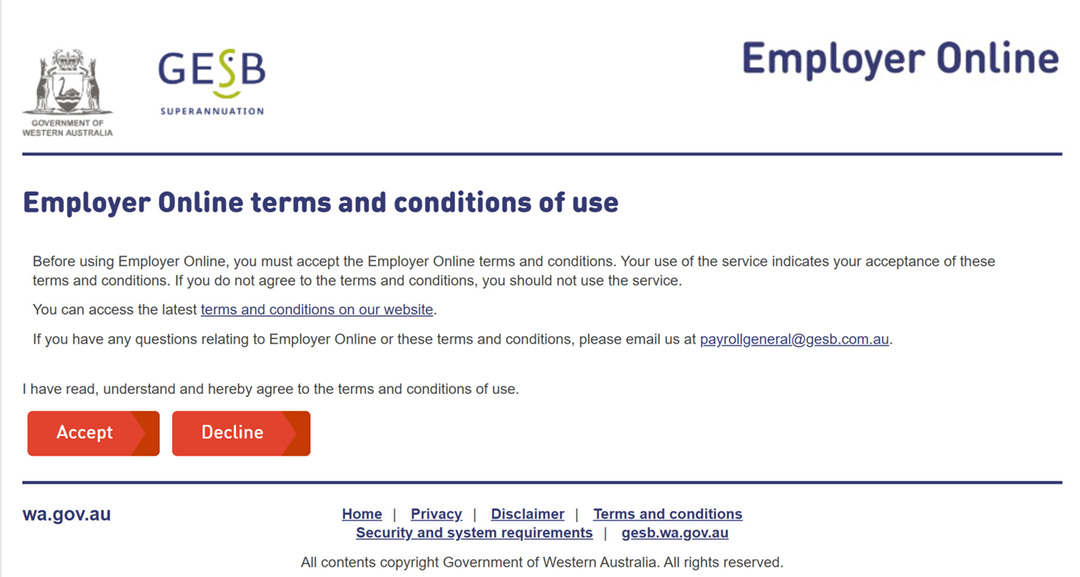
Once you have set up your MFA and accepted the terms and conditions, you will be logged into Employer Online. You will see the processing pages as usual.
Employer Online processing pages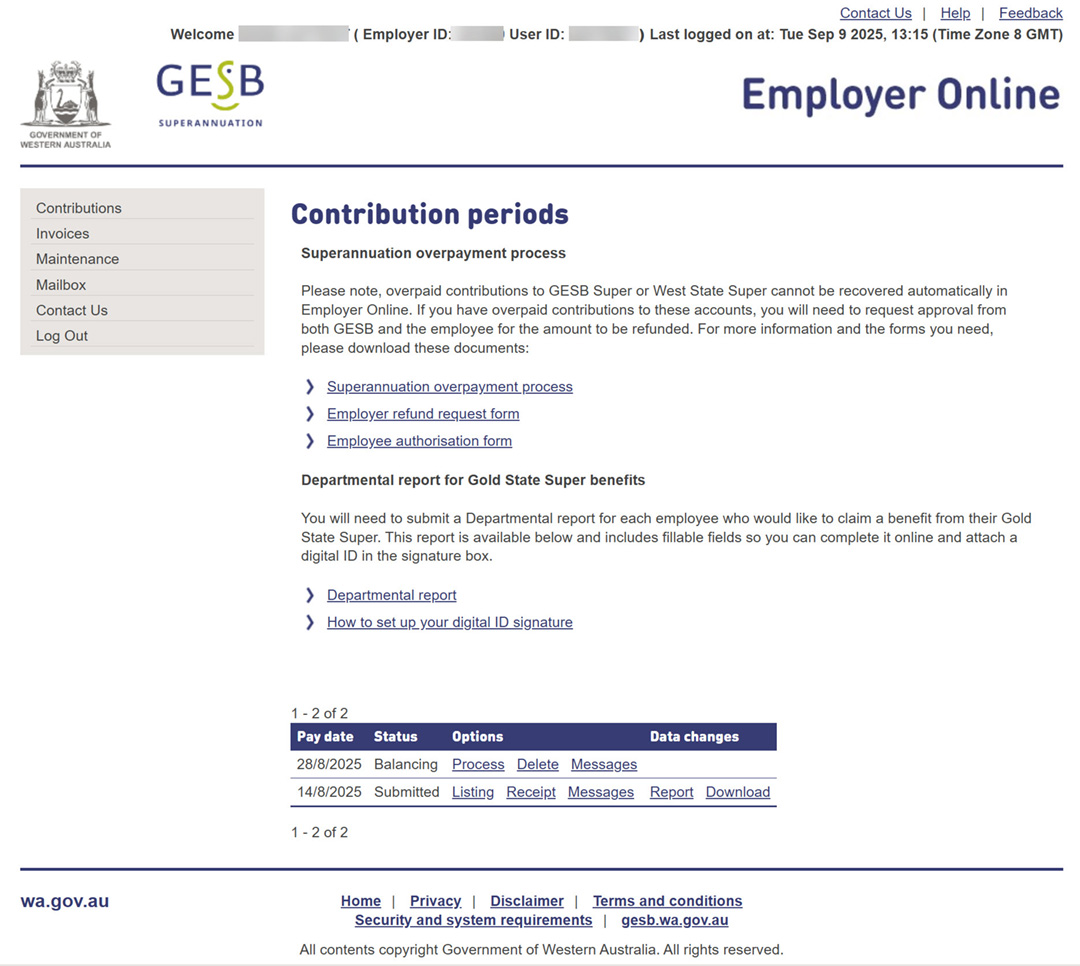


In future, logging in to Employer Online will be quicker:
- Log in with your employer number, user ID and password
- You will be prompted to enter a verification code. Use the authenticator app on your personal device to find this 6-digit code
Entering a verification code to log in to Employer Online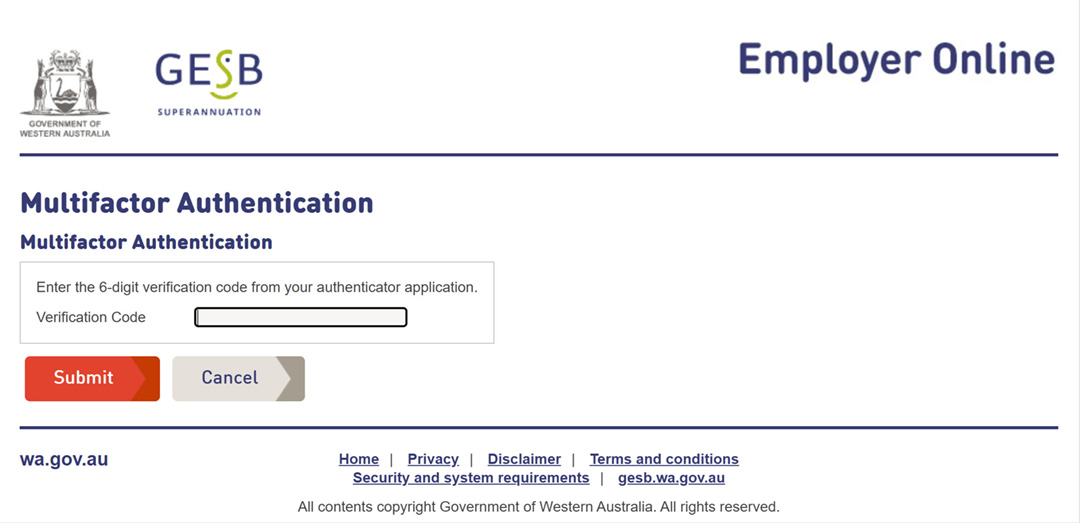
- Enter the code and click ‘submit’
You should now be successfully logged into Employer Online.
If you are unable to log in to Employer Online, please contact our Payroll General team for help.
Thank you for printing this page. Remember to come back to gesb.wa.gov.au for the latest information as our content is updated regularly. This information is correct as at 23 October 2026.