
How can I provide my tax file number through Member Online?
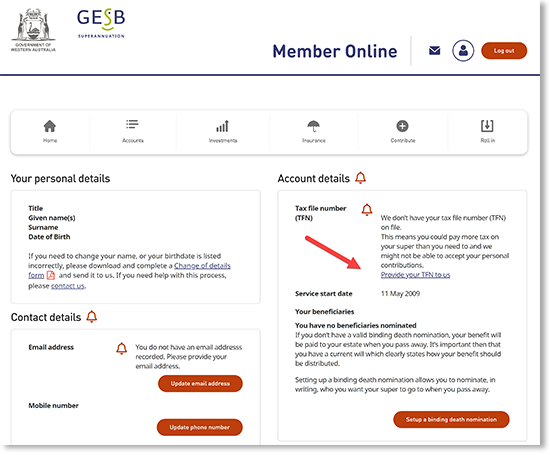
Once you’ve logged in to Member Online, visit the ‘Personal details’ page.

You’ll find a section named ‘Account details’ and ‘Not provided’ will appear next to your tax file number (TFN) if we don’t have your TFN.
Select the ‘Provide your TFN to us’ button.
If we already have your TFN, this will show as ‘Provided’ and you’ll need to contact your Member Services Centre if you wish to make any changes.
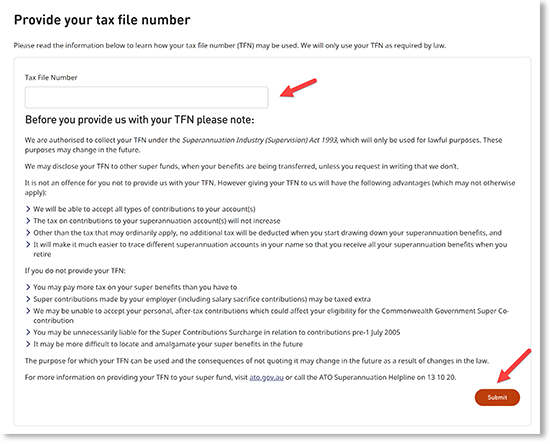
You can type your TFN into the box provided – and you’ll then need to tick the box to confirm you’ve read and agree d to how your TFN may be used. We will only use your TFN as required by law.
To submit your TFN, select the ‘Provide your TFN’ button.
Next, to make sure only you can provide your TFN to us, we’ll send you a code to your current mobile or email for our two-part identity check known as multi-factor authentication (MFA).
Once you’ve completed this identity check, you will see a message appear on-screen that your TFN has been received. We’ll also send you an email to confirm this.
Thank you for printing this page. Remember to come back to gesb.wa.gov.au for the latest information as our content is updated regularly. This information is correct as at 25 August 2026.