

Virtual Retirement Options Service (ROS) user guide
Follow this step-by-step guide to join your virtual ROS appointment.
In this user guide, you'll find:
How to join your virtual ROS appointment
Find the meeting link in your email
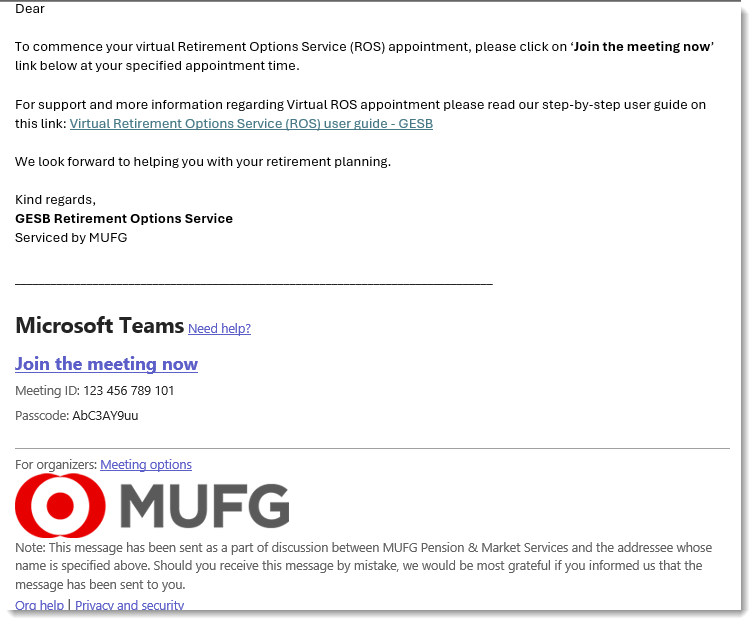
Open the email you received from ROS@gesb.com.au with the sender name ‘Retirement Options Service’ and the subject line ‘Your virtual Retirement Options Service appointment’.

This email contains the link for you to access your ROS appointment.
The email will look like this:
Set up the meeting in Microsoft Teams
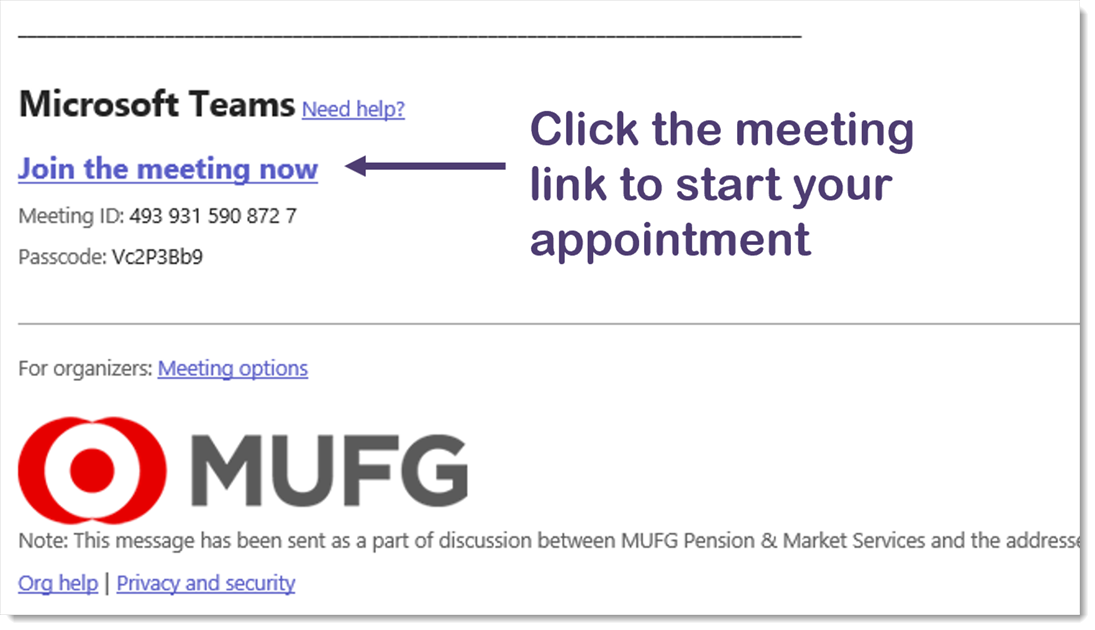
Step 1 - find the meeting link in your email
When the time comes to start your appointment, click on the ‘Click here to join the meeting’ link in the email, as shown below.
Step 2 - open the meeting in your browser
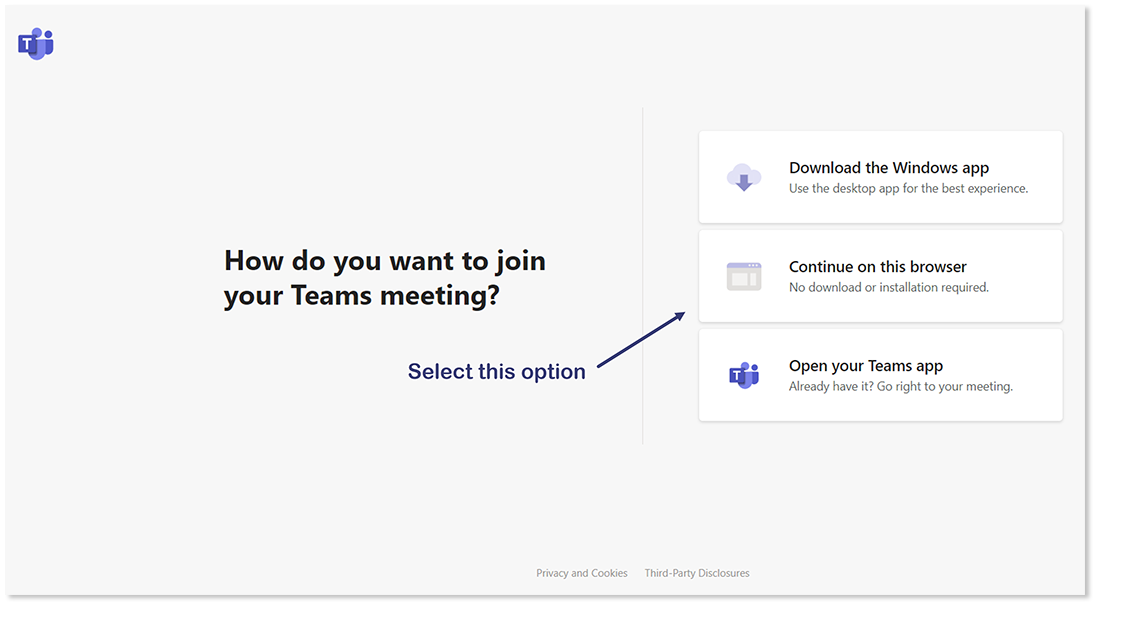
Once you’ve clicked the link, your internet browser will open with the screen below.
Click the ‘Continue on this browser’ option.
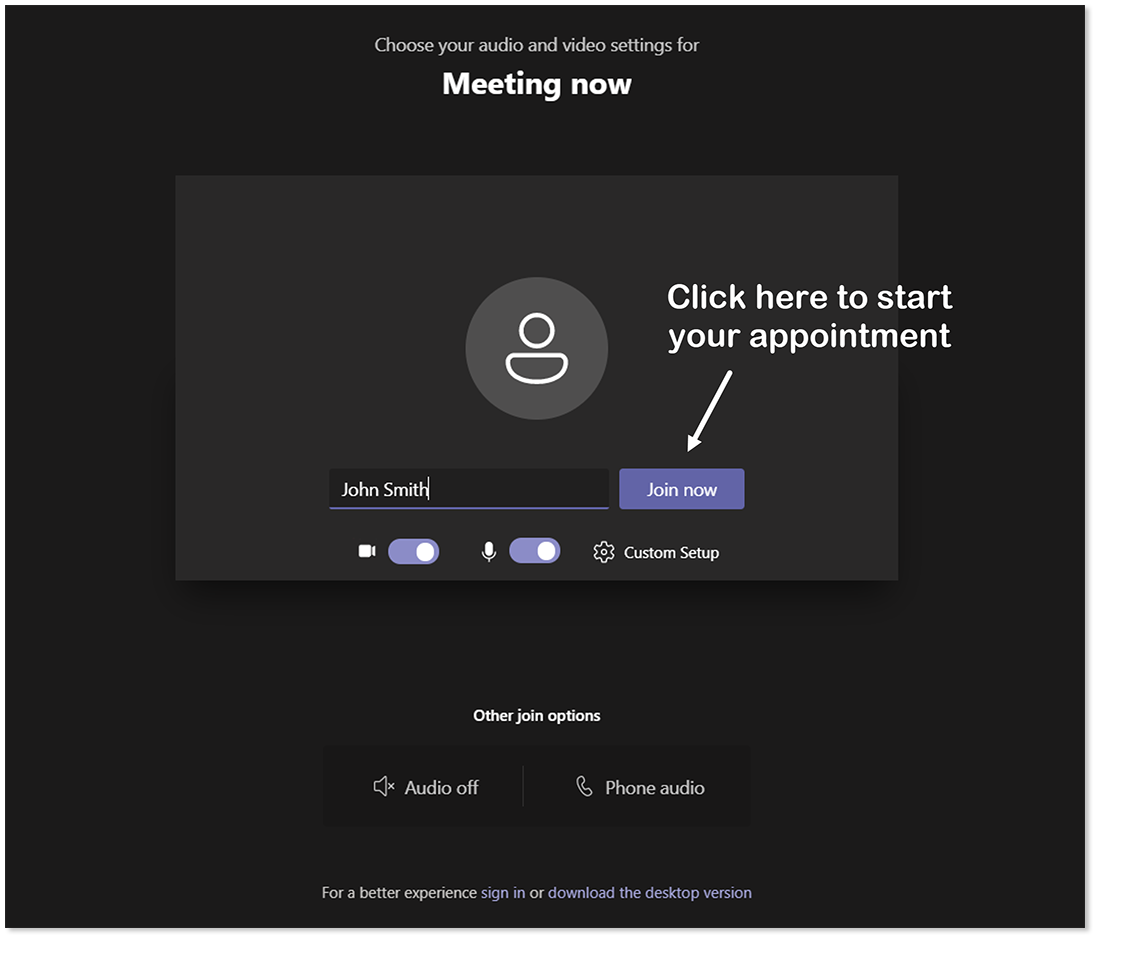
Step 3 - enter your details and check your settings
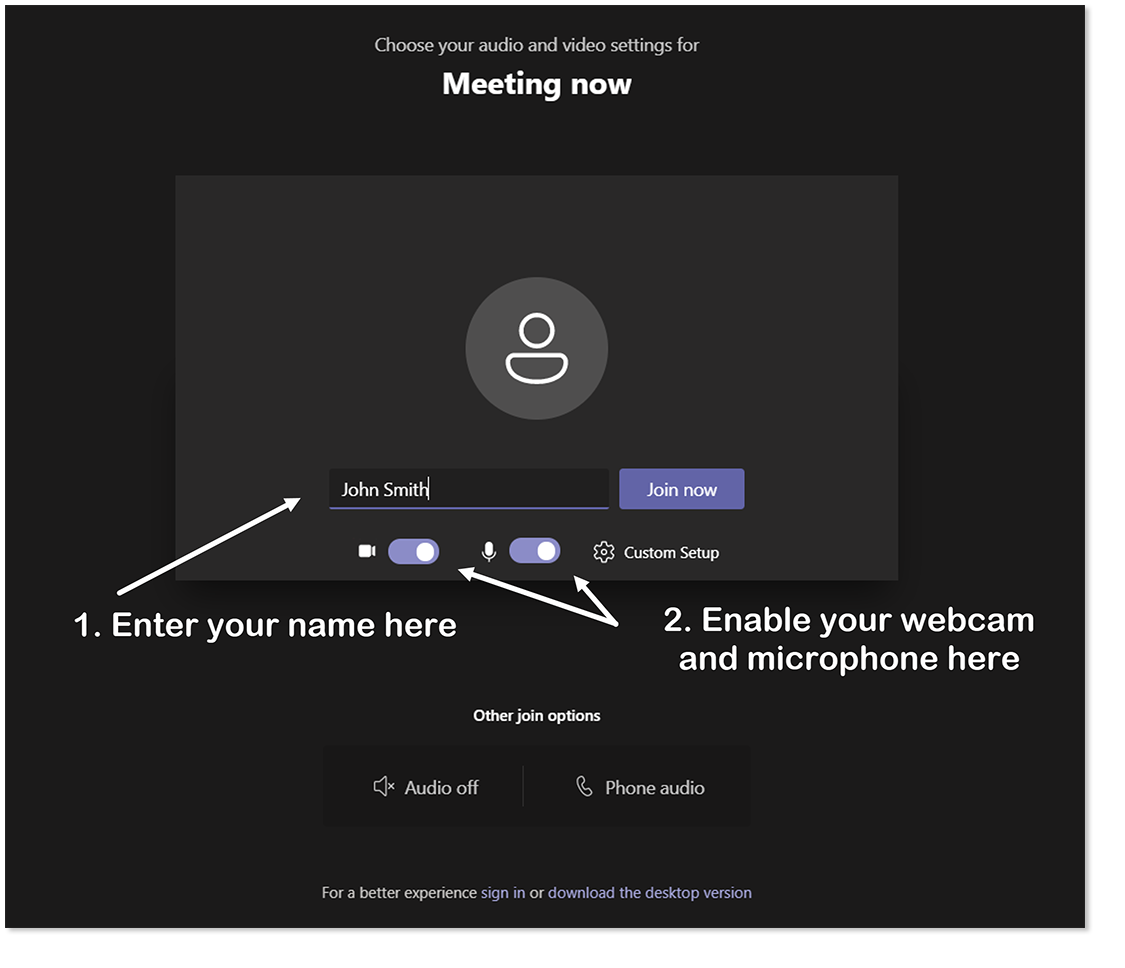
Once you’ve clicked ‘Continue on this browser’, the meeting settings screen will load.
You’ll need to enter your name and check that your microphone and webcam (if you are using one) is enabled.
To enable them, click on the sliders next to the video and microphone icons.
Start the meeting
Once you’ve entered your name and enabled your webcam and microphone, click the ‘Join now’ button to start your appointment:
Tips to help you prepare for your virtual ROS appointment
To help you get the most out of your online ROS appointment, we recommend that you:
- Use a PC, laptop, or tablet for your virtual ROS appointment, rather than your phone. Your consultant will be sharing information on the screen which may be difficult to read on a phone
- Prepare a list of questions to discuss during your appointment, or topics you’d like to cover
- Have a pen and note pad ready
- If you plan to open a Retirement Income Pension account, please have the form ready so we can help you apply during your appointment
To access our online form, log in to Member Online and go to the ‘Pension and payments’ page. If you would prefer to use our paper form, download and print the Retirement Income Pension Application form available at the end of our Retirement Income Pension product information booklet .
If you don’t have the required documents with you, you’ll need to complete the paperwork outside of your appointment.
Please note: during your ROS appointment your consultant will provide you with information that is general in nature, limited to GESB products and does not constitute personal financial advice. At the end of your appointment, you should consider seeking financial advice specific to your personal circumstances from a suitably qualified adviser.
Frequently asked questions
Do I need a webcam to attend my virtual ROS appointment?
No. You can attend the meeting using audio only. Your ROS consultant will have their camera enabled, so you will be able to see them throughout the meeting. Alternatively, if your computer doesn’t have a camera you can use a smartphone or tablet for the meeting.
What happens if I am running late or have difficulty starting the appointment?
Your ROS consultant will call you on your primary contact number approximately five minutes after your appointment start time to provide additional support.
What if I can’t make my appointment?
Please provide 48 hours’ notice if you are unable to attend your appointment. Call us on 13 43 72 to cancel.
Are you sure our online meeting will be private and secure?
Microsoft Teams is a secure platform which is compliant with the relevant regulatory security standards.
Can I record my ROS appointment?
No. You are not permitted to record your virtual ROS appointment. You will be provided with a ROS summary document after your appointment which will include notes on the topics covered during the meeting.
When will I receive my ROS appointment summary document?
Your ROS consultant will email you your ROS appointment summary within two business days of your appointment.
More information
- Learn more about our retirement accounts and features
- Get some helpful retirement tips
- Find out how to provide digital authority to deduct
Need help
- Call us on 13 43 72
Thank you for printing this page. Remember to come back to gesb.wa.gov.au for the latest information as our content is updated regularly. This information is correct as at 11 June 2026.